
Icons
The Shadcn Store Figma kit ships with a smart Icon Switchable system. Every icon used in every block is represented by a single switchable component that contains all five icon library variants simultaneously. One variable toggle switches your entire kit to a different icon style, globally, instantly, without touching a single component manually.
Lucide Icons is enabled by default.
Supported Icon Libraries
The kit includes five icon libraries, each on its own dedicated Figma page:
| Library | Figma Page | Style |
|---|---|---|
| Lucide Icons | Icons Lucide | Clean, minimal strokes (default) |
| Tabler Icons | Icons Tabler | Sharp, modern stroke icons |
| HugeIcons | Icons Hugeicons | Bold, expressive icons |
| Phosphor Icons | Icons Phosphor | Rounded, versatile icons |
| Remix Icon | Icons Remix | Practical, dual-weight icons |
How the Icon Switchable System Works
Each icon area in Shadcn Store components uses a switchable/icon-name component, for example, switchable/arrow-right
Inside that component, all five library variants are stacked on top of each other:
switchable/arrow-right
  ├── remix/arrow-right-line
  ├── phosphor/ArrowRight
  ├── hugeicon/arrow-right-02
  ├── tabler/arrow-right
└── lucide/arrow-right ← visible (default)Each variant's visibility is controlled by a boolean variable from the Icon Library collection in the Variables panel:
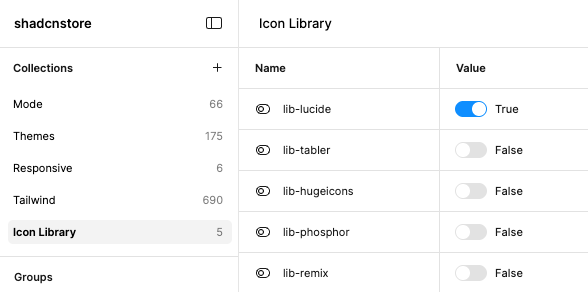
Switching Your Icon Library
To switch the active icon library across your entire Figma file:
- Open the Variables panel in Figma, press
Cmd/Ctrl + Lor go to the Local Variables menu - Open the Icon Library collection
- Find your currently active library (e.g.,
lib-lucide = True) and set it to False - Find the library you want to use and set it to True
That's it. All blocks and components update immediately.
Only one library at a time
Always keep exactly one library set to True. Enabling multiple libraries simultaneously will cause multiple icon variants to render on top of each other.
The Icons Switchable Page
Your Figma file contains a dedicated Icons Switchable page. This page is the source of truth for all switchable/* components.
Each icons on this page represents one icon name, showing a single switchable/icon-name component that internally references all five library variants. When you browse this page, you'll see icons rendered in whichever library is currently active via the Icon Library variable.
Use this page to:
- Verify your active icon library looks correct before sharing designs
- Find the exact component name to reference in your own custom blocks (e.g.,
switchable/search,switchable/chevron-down) - Add new switchable icons for icons not yet in the system (see below)
Committing to a Single Icon Library
If you've decided on one icon library and don't need the flexibility to switch, you can simplify your Figma file significantly. This reduces page count, speeds up Figma's rendering, and makes the file easier to navigate for your team.
Switch your library first
Before removing any pages, make sure you've already switched to the icon library you want to keep. Follow the Switching Your Icon Library steps above and confirm your chosen library looks correct across your designs. Once you delete the other library pages, switching to them won't be possible.
Step 1: Remove unused library pages
Once you've chosen your library (e.g. Lucide Icons), delete the four pages you no longer need:
- In the Pages panel on the left, right-click each unused library page
- Select Delete Page
- Keep only:
- Your chosen library page (e.g. Icons Lucide)
- The Icons Switchable page, always keep this. Every block across the entire Figma file uses
switchable/*components, so this page must stay as it is the source of truth for all icon rendering
Safe to delete
Deleting unused library pages does not break anything. The switchable/* components only render the variant whose lib-* variable is True, the other variants are invisible and harmless. Removing the pages just reduces clutter.
Step 2: Use direct icons instead of switchable components
When you're locked into a single library, you no longer need the switchable/* indirection. You can place icons directly from your chosen library page, which results in a leaner component tree.
Instead of:
switchable/arrow-right ← wraps all five variantsUse directly:
lucide/arrow-right ← single icon, no overheadTo do this:
- Go to your chosen library page (e.g. Icons Lucide)
- Find the icon you need
- Copy and paste it directly into your component or frame, or use Assets panel → search the icon by name and drag it in
When to stick with switchable components
You should keep using switchable/* even with a single library if:
- You want to leave the door open to switching libraries later without touching every component
- You're sharing the file with collaborators who may choose a different library
- Your team hasn't settled on a final icon style yet
Otherwise, direct icons are the lighter, simpler choice!!
Adding a Missing Icon
Don't manually show/hide icon variants
Never toggle the visibility of individual icon variants by hand inside a switchable/* component. Visibility is controlled exclusively by the Icon Library boolean variables. Manually hiding or showing layers will break the global switching system and cause icons to behave inconsistently across your file.
If a specific icon isn't in the switchable/* system yet:
- Find the icon on each of the five library pages (Icons Lucide, Icons Tabler, etc.) or add it to those pages first if it's missing there too
- Go to the Icons Switchable page
- Duplicate an existing
switchable/*component that's similar in concept - Replace each nested variant with the correct icon from each library page
- Rename the component to
switchable/your-icon-name - Your new switchable icon is now ready to use anywhere in your file and will respond to the Icon Library variable like all other icons
Troubleshooting
All five icons are showing at once
You have more than one `lib-*` variable set to `True` in the Icon Library collection. Go to the Variables panel and set all but one to `False`.Switching the variable didn't update my components
- Make sure you're editing the Default mode of the Icon Library collection, not a custom mode
- Try
Cmd/Ctrl + Rto refresh the page - If it still doesn't update, use Quick Actions (
Cmd/Ctrl + /) → search "Regenerate all instances (slow)" and press Enter